Video Tools
Video Converter — MP4, WebM, MOV & MKV Converter
Convert videos between MP4, WebM, MOV and MKV right in your browser — the container every phone, browser and editor accepts, with nothing uploaded.
Open toolBig video files bounce off email limits, upload caps and chat apps. This free compressor shrinks them on your own device: pick how hard to squeeze and, if you like, cap the resolution — a 1080p phone clip rarely needs to stay 1080p just to be shared. Three presets keep it simple: Light keeps quality high, Balanced is the everyday choice, and Strong goes for the smallest file. Nothing is uploaded to a server, which matters when the clip is a family video or something work-related. One honest note: browser processing is slower than a desktop editor, and very large files (hundreds of MB) can run into browser memory limits — for those, compress a trimmed copy.
Choose a file to begin — nothing is uploaded, everything happens on your device.
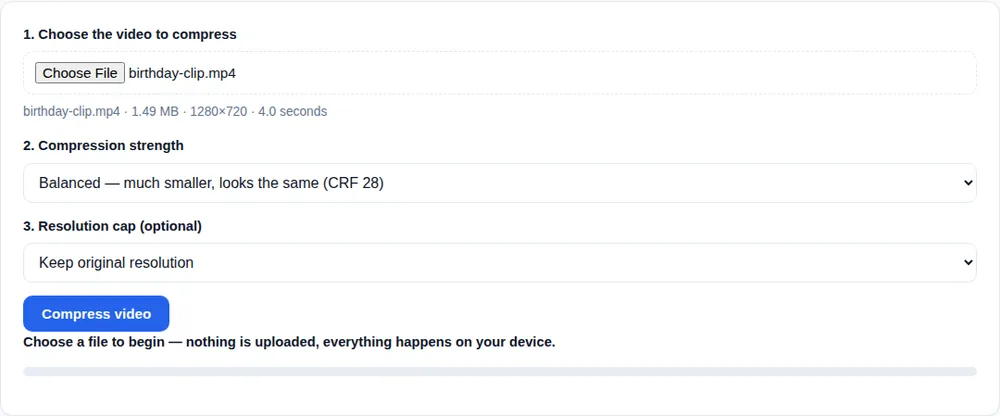
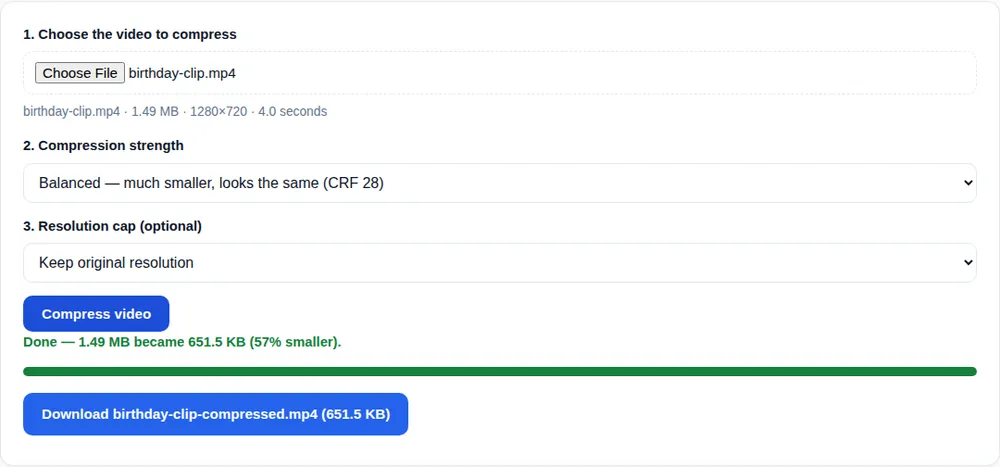
In our own test, a 4-second 720p clip of 1.03 MB came out at 0.58 MB on the Balanced setting — 44% smaller — with no visible quality loss at normal viewing size.
It depends on the preset. Light (CRF 24) is visually near-identical for most clips. Balanced (CRF 28) is the sweet spot for sharing — most people cannot tell the difference on a phone screen. Strong (CRF 34) visibly softens fine detail, which is fine for quick previews and messaging limits. The tool always shows you the before and after sizes so you can judge the trade-off and re-run with a lighter touch if needed.
No. The compression engine (FFmpeg compiled to WebAssembly) runs entirely inside your browser tab, on your device. Your file is never sent to a server — you can even load this page, go offline, and still compress.
Your browser is doing real video encoding with the same FFmpeg engine desktop tools use, but without access to your device's hardware encoder. Short clips finish in seconds to a minute; long 1080p videos can take several minutes. The progress bar shows the encode as it happens.
As a rule of thumb, keep files under roughly 200 MB. Browser memory is the limit — the file, the decoded frames and the output all live in your tab's memory at once. For a very large recording, trim it first with the Video Trimmer, or compress it in sections.