PDF Tools
PDF Splitter & Extractor — Split a PDF by Pages
Extract a page range from a PDF as a new file, or split a whole document into one PDF per page (zipped) — in your browser, with no upload.
Open toolThe signed contract, the annex, the ID scan and the invoice — four PDFs that should be one file. This merger combines any number of PDFs into a single document, in exactly the order you list them, by copying the original pages across untouched: text stays text, links and quality survive, and nothing is re-rendered into pictures. It runs entirely in your browser with the open-source pdf-lib library, so confidential paperwork — contracts, applications, medical forms — is never uploaded to a stranger's server. Add the files, check the order, merge, done.
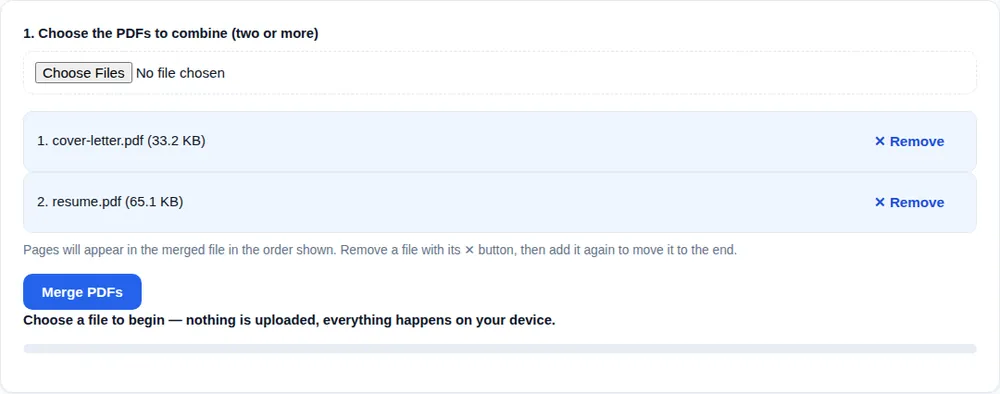
Pages will appear in the merged file in the order shown. Remove a file with its ✕ button, then add it again to move it to the end.
Choose a file to begin — nothing is uploaded, everything happens on your device.
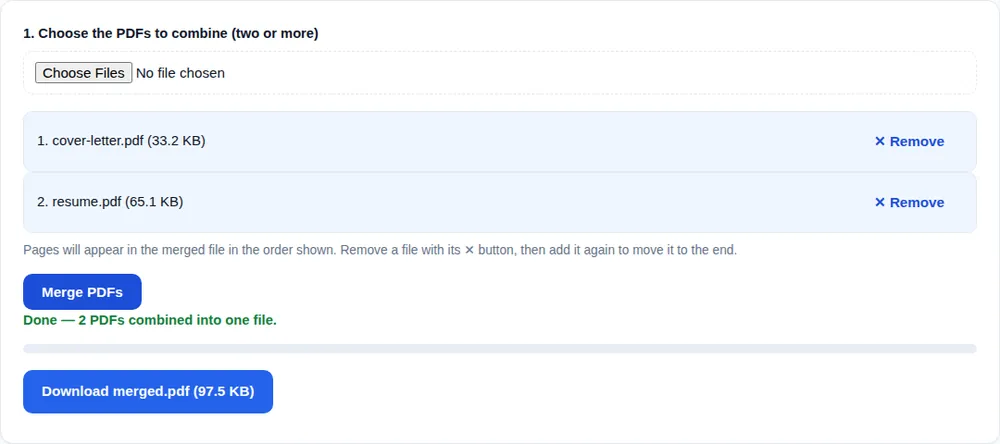
PDFs of 4, 6 and 2 pages merge into a single 12-page file in exactly the order listed — every page's content untouched, nothing re-rendered.
No. Pages are copied from each source PDF into the new document exactly as they are — same text (still selectable), same images, same resolution. Merging with pdf-lib is a structural operation, not a conversion.
The limit is your device's memory, not a page count. Dozens of ordinary documents merge happily; a set of huge scanned files totalling hundreds of MB can strain a phone browser. On a normal laptop, typical paperwork is never a problem.
Never. The merging library runs in your browser tab and the files never leave your device. That is the whole point of doing it this way — the merger works even if you load the page and then switch off your internet.
Only after unlocking it — a protected file cannot be opened by the merger. Use the Unlock PDF tool first (with the password, of course), then merge the unlocked copy.